FM WhatsApp Message Scheduler Not Working? How to Fix It
If your scheduled messages in FM WhatsApp are not being sent, the cause is usually practical: a wrong date or time setting, a weak internet connection, battery restrictions, or a version-related limitation. This guide explains why the FM WhatsApp message scheduler may stop working and walks you through a step-by-step troubleshooting process.
Why Is FM WhatsApp Message Scheduler Not Working?
The message scheduler is designed to prepare a text in advance and send it automatically at a date and time you choose. When that never happens, one or more of the following causes is usually responsible:
- Incorrect schedule details: The date, time, or recipient was set up incorrectly.
- No internet at the scheduled moment: The app needs an active connection to send anything.
- Background restrictions: Android closed or froze the app before the scheduled time.
- Battery saving features: Power-saving modes can block the app from waking up.
- Version differences: Scheduler behavior varies between FM WhatsApp versions, and some builds are less stable than others.
- Recipient-side issues: The contact may have changed numbers, blocked you, or lost connectivity.
Because FM WhatsApp is a third-party modified app, its features do not always behave consistently. A scheduled message appearing in the app does not guarantee that the other person will receive it.
Check the Scheduled Message Details
Start by reviewing the message you already scheduled. Small setup mistakes are the most common reason scheduled messages fail.
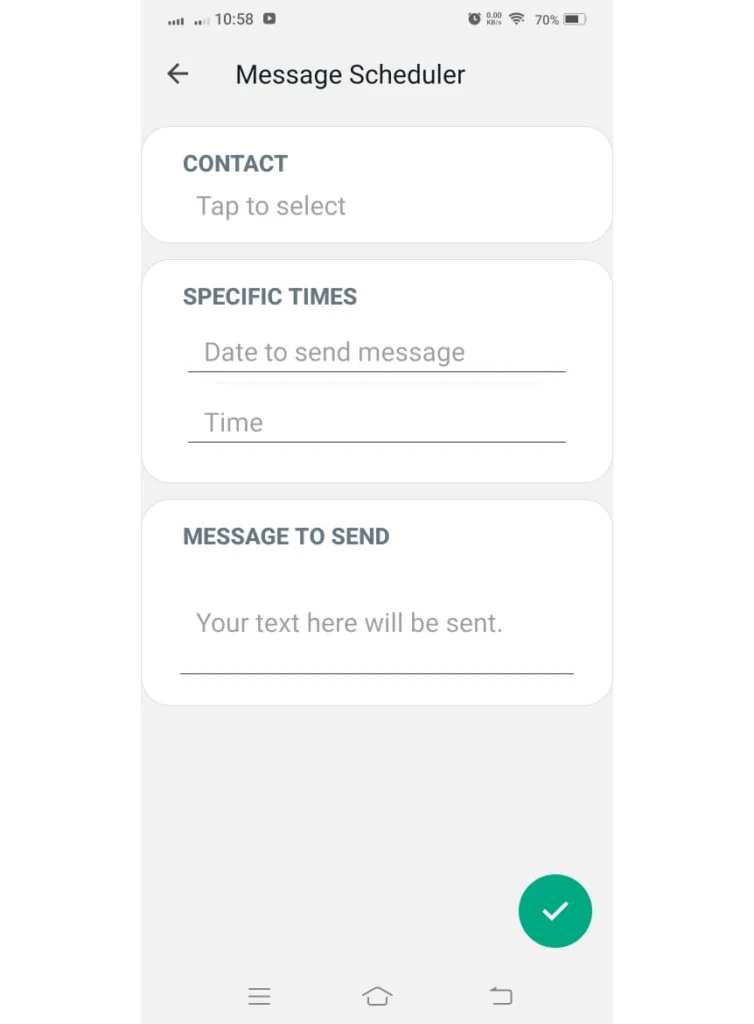
- Open FM WhatsApp and go to the message scheduler section. The exact menu name can vary between versions, so look for an option related to scheduling or auto-reply tools.
- Find the pending message in the list and open its details.
- Confirm the correct contact or group is selected as the recipient.
- Check the date and time carefully. Make sure the time is still in the future and that AM/PM is correct if your phone uses a 12-hour format.
- Review the message text. If you tried to schedule media or an empty message, test with plain text first, because some versions handle attachments differently.
- Save the message again after making corrections.
Make Sure Your Internet Connection Is Stable
The scheduler can only deliver a message if the phone is online at the scheduled time. A message planned for 2 a.m. will fail if your phone loses Wi-Fi overnight.
- Open a browser and load any website to confirm the connection works.
- Switch between Wi-Fi and mobile data to rule out a problem with one network.
- Turn off airplane mode and check that a VPN or data saver app is not blocking traffic.
- If the message is scheduled for a time when you usually lose signal, change the schedule or improve coverage first.
Review Background Activity and Battery Settings
Android aggressively manages apps that run in the background. If the system puts FM WhatsApp to sleep, the scheduler never gets a chance to fire. Menu names differ by manufacturer, but the general path is similar on most phones.
- Open your phone’s Settings and go to Apps, then select FM WhatsApp.
- Tap Battery and choose the least restrictive option available, such as Unrestricted or Don’t optimize.
- Check that background data usage is allowed for the app.
- On phones from manufacturers with aggressive power management, look for an Autostart or App launch setting and enable it for FM WhatsApp.
- Avoid turning on battery saver mode around the time your message is scheduled to send.
Check App Permissions and Version Compatibility
The scheduler may also fail if the app lacks permissions it needs, or if you are using a version where the feature is limited or broken.
- In your phone’s app settings, review the permissions granted to FM WhatsApp and allow the ones it requests for normal operation.
- Check which version of FM WhatsApp you are running and read the release notes for your build, if available, to confirm the scheduler is included.
- If your version is old or unstable, consider updating through the FM WhatsApp download page you normally use, and back up your chats before updating.
If the app crashes often or other features also misbehave, the problem may be bigger than the scheduler. In that case, work through a general FM WhatsApp troubleshooting guide first.
Test the Scheduler Again
After adjusting settings, verify the fix with a controlled test instead of waiting for an important message to fail again.
- Create a new scheduled message addressed to a trusted contact or a second number you control.
- Set it for five to ten minutes in the future and save it.
- For the first test, keep the app open and the screen on until the scheduled time passes.
- Repeat the test with the app closed and the screen off. This confirms whether background restrictions were the problem.
- Note whether the message is sent on time, sent late, or not sent at all, and adjust the battery and background settings again if needed.
When to Consider Other Messaging Options
Even when everything is configured correctly, treat scheduled messages in a modified app as a convenience, not a guarantee. The recipient might not receive the message because of issues on their side, and no scheduler can confirm delivery in advance.
For reminders that truly matter, such as birthdays, business follow-ups, or urgent notices, use a backup method: a calendar alert, a reminder app, or a message you send manually. It is also worth remembering that modified apps carry privacy and account risks, which are covered in more detail in this overview of whether FM WhatsApp is safe to use.
Frequently Asked Questions
Does the FM WhatsApp scheduler work when the app is closed?
It can, but only if Android allows the app to run in the background. If battery optimization or background limits are enabled, the scheduled message may be delayed or never sent.
Will the recipient know my message was scheduled?
No. A successfully delivered scheduled message looks like any normal message. There is no label showing it was automated.
Can I schedule photos or videos instead of text?
That depends on your app version. Some builds only handle plain text reliably, so test media scheduling with an unimportant message first.
Why was my scheduled message sent late?
Late delivery usually means the phone was asleep, offline, or restricting the app at the scheduled time. The app then sends the message when it next gets a chance to run.